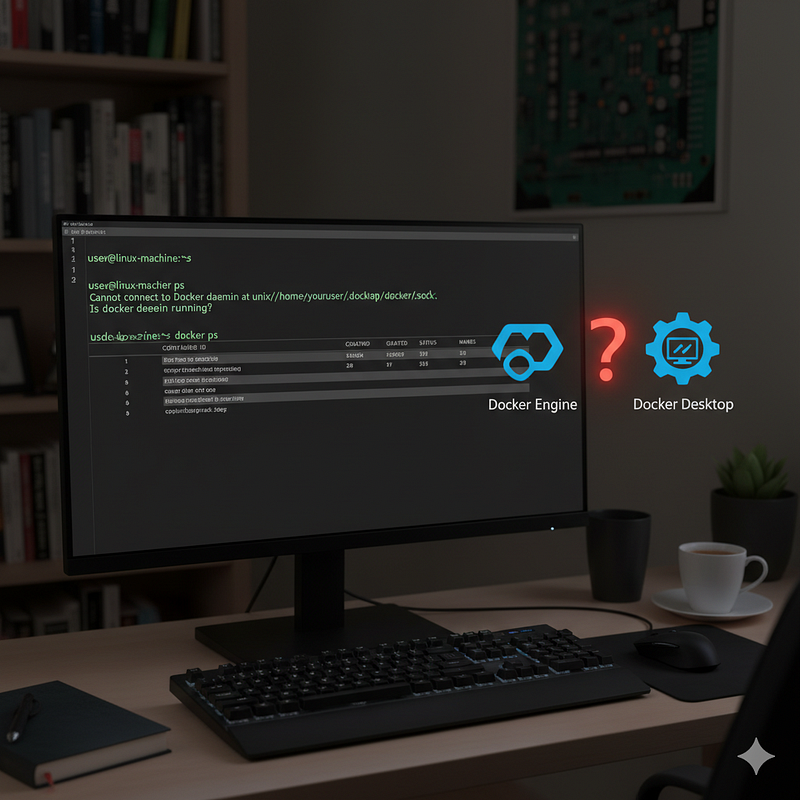
How to Fix “Cannot Connect to Docker Daemon” Error on Ubuntu Linux
If you’re seeing this error when running docker ps:
Cannot connect to the Docker daemon at unix:///home/youruser/.docker/desktop/docker.sock. Is the
docker daemon running?
But sudo docker ps works fine, you’re not alone. This is a common issue on Linux systems where Docker Engine is installed alongside (or after) Docker Desktop.
In this guide, you’ll learn why this happens and how to resolve it using Docker’s built-in context management permanently.
🔍 Why This Happens
Docker provides two main ways to run on Linux:
- Docker Engine — The standard, lightweight, command-line–first version (recommended for Linux).
- Docker Desktop — A GUI-focused application originally designed for macOS and Windows, now available on Linux (but less common).
When you install Docker Desktop, it automatically:
- Creates a Docker CLI context named
desktop-linux. - Sets this context as active.
- Configures it to use a custom socket at:
unix:///home/youruser/.docker/desktop/docker.sock
Later, if you:
- Uninstall Docker Desktop, or
- Switch to using Docker Engine (via
apt install docker-ce),
…the desktop-linux context remains active, even though the socket file no longer exists. That’s why Docker CLI fails to connect—it’s looking in the wrong place.
Meanwhile, sudo docker ps works because sudo bypasses your user’s Docker context and uses the system default (/var/run/docker.sock).
✅ Step-by-Step Fix
1. Check Your Current Docker Contexts
Run:
docker context lsYou’ll likely see something like:
NAME              DESCRIPTION       DOCKER ENDPOINT                                  ERRORdefault
...               unix:///var/run/docker.sockdesktop-linux *   Docker Desktop
unix:///home/user/.docker/desktop/docker.sock
The * indicates the active context—in this case, the broken desktop-linux.
2. Switch to the default Context
The default context points to the correct socket used by Docker Engine:
docker context use defaultOutput:
default✅ This tells Docker CLI to use /var/run/docker.sock—the standard location.
3. Test the Fix
docker psIt should now work without sudo!
Final Check
After applying the fix:
docker context ls    # Should show 'default *'
docker ps            # Should work without sudo
docker run --rm hello-world  # Test end-to-end
🏁 Conclusion
The “Cannot connect to the Docker daemon” error on Linux is almost always a configuration mismatch, not a broken installation. As you’ve seen, it typically stems from Docker CLI pointing to a non-existent Docker Desktop socket while your actual Docker Engine runs perfectly in the background.
By switching to the default Docker context, you align your CLI with the standard Docker Engine socket (/var/run/docker.sock)—restoring seamless, sudo-free container management. This simple fix resolves the issue permanently without affecting your system services or requiring a Docker reinstall.
Remember: On Linux, Docker Engine is the native and recommended choice. Docker Desktop can be useful for specific workflows, but it introduces complexity that often leads to conflicts like this one. If you don’t actively need its GUI features, sticking with Docker Engine ensures a cleaner, more predictable experience.
Now that your Docker environment is back on track, you can focus on what really matters — building, running, and shipping your containers with confidence. Happy coding! 🐳✨