
When working with autonomous coding agents like Cline, managing multiple upstream AI providers — such as Google AI Studio, OpenRouter, and premium OAuth subscriptions — quickly becomes a maintenance bottleneck. Rate limits (HTTP 429), quota exhaustion, and fragmented API keys disrupt agentic loops mid-refactor.
9router solves this by acting as a lightweight, local reverse proxy and API gateway. It normalizes distinct upstream protocols into a single OpenAI-compatible endpoint (http://localhost:20128/v1), aggregates token balances, and implements automatic failover (Combos) across your providers.
Architecture Overview
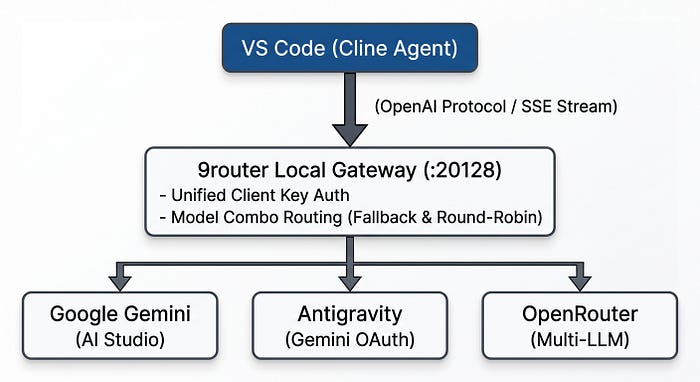
Step 1: Install and Launch 9router
9router requires Node.js (v18+) and npm installed on your machine.
Install 9router globally:
npm install -g 9routerRun
9routerOpen the Web UI:
- Navigate to
http://localhost:20128in your browser.
- Default Password:
123456(can be modified in Settings).
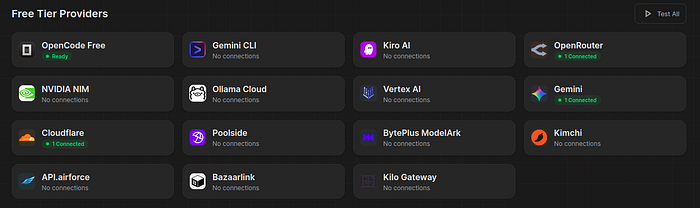
Step 2: Configure Gemini, Antigravity, and OpenRouter
1. Google Gemini via Google AI Studio
- Navigate to Google AI Studio and sign in.
- Click Get API key>Create API key in new project, and copy your key.
- In the 9router dashboard, go to the Providers tab and find Gemini.
- Click Add Connection, paste your API key, name it (e.g.,
gemini-main), and click Test&Save. - Add your desired model IDs (such as
gemini-2.5-proorgemini-2.5-flash).
2. Antigravity (Google Gemini Pro OAuth)
If you have an active Gemini Pro / Google Workspace subscription:
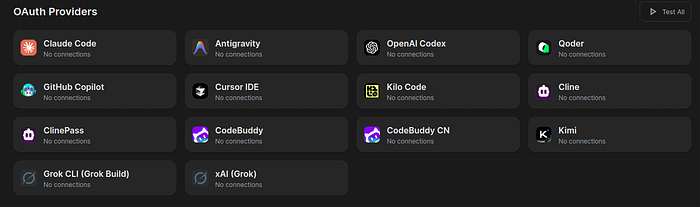
- In the Providers tab, locate Antigravity.
- Click Add Connection / Build Authentication.
- Complete the OAuth sign-in flow in your browser to link your account.
- Verify that models like
gemini-pro-agentappear under your active models list. - ⚠️ Risk Notice: This provider uses a subscription/OAuth session not officially licensed for proxy/router use. Your account may be restricted or banned. Use at your own risk.
3. OpenRouter
- Go to OpenRouter.ai and create an account.
- Navigate to Keys, create a new API key, and copy it.
- In 9router, locate the OpenRouter provider card, click Add Connection, and enter the key.
- Go to OpenRouter’s model catalog, copy specific model identifiers (for example, free or paid models like
deepseek/deepseek-r1ornvidia/nemotron-3-ultra-550b-a55b:free), and add them to 9router.
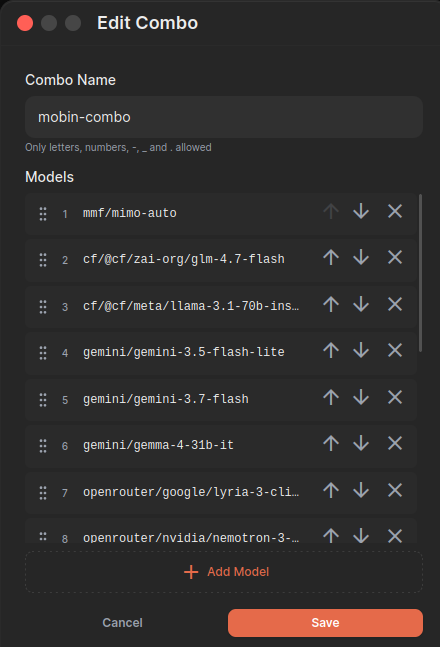
Step 3: Create a Resilient Model Combo
A Combo is a virtual model identifier that groups several models together under a single alias with automatic routing policies:
- In 9router, navigate to the Combos tab and click Create Combo.
- Name the combo (e.g.,
code-agent). - Add your configured models to the pool:
gemini/gemini-2.5-proantigravity/gemini-pro-agentopenrouter/deepseek-r1
Set the Routing Strategy:
- Fallback (Recommended for Coding): Routes requests to the primary model first. If it encounters a rate limit (
429) or failure, it automatically cascades down to the next model in the queue without interrupting your task. - Round-Robin: Distributes requests evenly across all providers to balance token quotas.
- Click Save.
Step 4: Generate a 9router Master API Key
To authenticate downstream clients (like Cline or Chatbox) against your local 9router instance:
- In 9router, navigate to the Endpoints / Keys section.
- Click Create Key.
- Enter a label (e.g.,
vscode-cline) and click Create. - Copy the generated master key (
sk-...). - Note your local endpoint URL:
- Plaintext
http://localhost:20128/v1
Step 5: Install and Configure Cline in VS Code
1.1. Install the Cline Extension: Search the extension marketplace.
- Open VS Code and open Extensions (
Ctrl+Shift+Xon Windows/Linux orCmd+Shift+Xon macOS). - Search for Cline (by Saoud Rizwan) and click Install.
- Open the Cline panel via the robot icon on the Activity Bar.
2.2. Configure API Settings: Connect Cline to your local 9router gateway.
Click the Gear icon (⚙️ / Settings) in the top right of the Cline panel:
- API Provider: Select
OpenAI Compatible. - Base URL: Enter
http://localhost:20128/v1. - API Key: Paste your 9router master key generated in Step 4.
- Model ID: Enter your Combo name (e.g.,
code-agent). - Click Done to save the configuration.
3.3. Test the Setup: Verify execution loop and automatic failover.
- In the Cline chat window, switch the mode selector to Act Mode.
- Enter a test prompt:
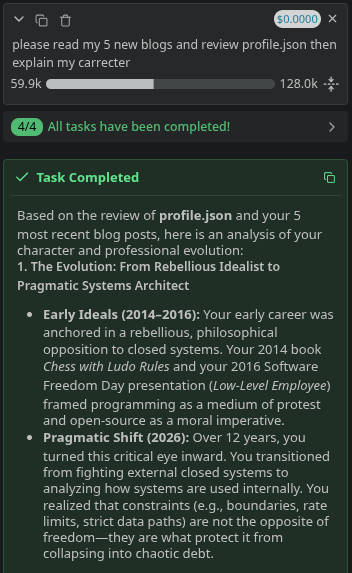
Inspect @package.json and write a simple health check test.Cline will route the request to 9router, which queries your primary Gemini model. If Gemini hits a rate limit, 9router seamlessly fails over to OpenRouter without breaking Cline’s execution loop.
Summary
With this architecture:
- VS Code & Cline only ever need to know about one endpoint (
http://localhost:20128/v1) and one local key. - 9router handles authentication multiplexing, protocol normalization, and real-time usage logging.
- Combos ensure high availability, letting you maximize free tiers and premium quotas across Gemini, Antigravity, and OpenRouter without manual key rotation.