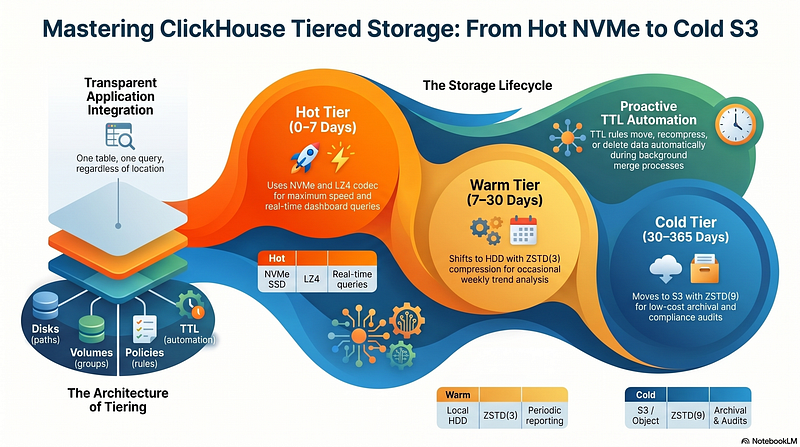
Most ClickHouse deployments start simple: one server, one disk, one table. That works fine until the day you realise you are paying NVMe prices to store two years of data that nobody has queried in six months. Or until your ops team tells you the fast disk is 90% full and the only fix is to buy more of the most expensive storage you own.
ClickHouse has a first-class answer to this called tiered storage. Define multiple storage layers — fast local NVMe for hot data, cheap spinning HDD for warm data, S3-compatible object storage for cold or archival data — and tell ClickHouse exactly when to move data between them. From the application side it is still one table and one query. The tiering is completely transparent.
This article builds the concept from the ground up. We start with a single disk and end with a full production configuration that combines local NVMe, local HDD, and S3 with automatic time-based tiering, recompression, and deletion — all with zero application code changes.
Part 1: Why One Disk Is Not Enough
Consider a time-series table that grows at several gigabytes per hour. After 90 days you have terabytes of data on a single disk. The access pattern is almost always heavily skewed:
- The last few days are read constantly — dashboards, real-time alerts, recent aggregations.
- Data from a week to a month ago is read occasionally — weekly reports, trend analysis.
- Data older than a month is almost never read — forensic investigations, compliance audits.
Paying NVMe prices for all three categories is pure waste. The ideal setup matches storage cost to access frequency:
Recent data    →  NVMe SSD   (fast, expensive)
Older data     →  HDD        (slower, cheap)
Archival
data  →  S3         (very slow, very cheap)
Expired data   →  deleted    (free)
ClickHouse tiered storage implements exactly this model natively — no external tooling, no application changes, no manual cron jobs.
Part 2: Four Concepts You Must Understand First
Everything in tiered storage is built from four primitives. Get these clear and the rest of the article falls into place naturally.
Disk
A disk is any storage location ClickHouse can write to:
- A local filesystem path (NVMe, HDD, tmpfs — ClickHouse does not care about the underlying hardware)
- An S3-compatible endpoint (AWS S3, MinIO, GCS interop, Azure Blob interop)
- An HDFS path
- An encrypted wrapper around any of the above
Each disk has a name you choose and a type that tells ClickHouse which driver to use.
Volume
A volume is an ordered group of one or more disks. When ClickHouse writes a new data part it goes to the first disk in the first volume that has enough free space. Volumes are also the unit referenced in TTL rules: “move to volume cold."
Storage Policy
A storage policy is an ordered list of volumes with optional rules for automatic movement between them. A table is assigned exactly one storage policy. If you do not specify one, ClickHouse uses the built-in default policy — a single volume pointing at the default local data directory.
TTL (Time To Live)
TTL rules are attached to a table and tell ClickHouse what to do with data parts when a time condition is met: move them to a different volume, recompress them, or delete them outright. TTL conditions are evaluated during background merges.
The relationship between these four concepts:
Table
└── Storage Policy: 'hot_warm_cold'
├── Volume: hot   → Disk: nvme_disk
├──
Volume: warm  → Disk: hdd_disk
└── Volume: cold → Disk: s3_diskTable TTL: event_time + INTERVAL 7 DAY → move to volume 'warm' event_time + INTERVAL 30 DAY →
move to volume 'cold' event_time + INTERVAL 365 DAY → DELETEPart 3: Local Disk Only — NVMe and HDD
Step 1: Create the Disk Paths
ClickHouse will refuse to start if a configured disk path does not exist or is not owned by the clickhouse user. Create and chown the directories before touching any config:
mkdir -p /mnt/nvme/clickhouse /mnt/hdd/clickhouse
chown -R clickhouse:clickhouse /mnt/nvme/clickhouse /mnt/hdd/clickhouse
Step 2: Configure the Disks
ClickHouse reads storage configuration from XML files in /etc/clickhouse-server/config.d/. Create a dedicated file rather than editing the main config.xml:
<!-- /etc/clickhouse-server/config.d/storage.xml -->
<clickhouse>
<storage_configuration>
<disks>
<!-- Fast NVMe — primary hot storage -->
<nvme_disk>
<type>local</type>
<path>/mnt/nvme/clickhouse/</path>
<!-- Prevent ClickHouse from filling the disk completely -->
<keep_free_space_bytes>10737418240</keep_free_space_bytes>
<!-- 10 GB -->
</nvme_disk>
<!-- Cheap spinning HDD — warm storage -->
<hdd_disk>
<type>local</type>
<path>/mnt/hdd/clickhouse/</path>
<keep_free_space_bytes>10737418240</keep_free_space_bytes>
</hdd_disk>
</disks>
</storage_configuration>
</clickhouse>
Step 3: Define the Storage Policy
Add the policy inside the same <storage_configuration> block, after </disks>:
<policies>            <hot_warm>                <volumes>                    <!-- Volume 1: hot —
all new parts land here first -->                    <hot>
<disk>nvme_disk</disk>                        <!-- Parts larger than this are written directly
to the next volume instead -->
<max_data_part_size_bytes>10737418240</max_data_part_size_bytes>                    </hot>
<!-- Volume 2: warm — parts move here via TTL or when hot fills up -->                    <warm>
<disk>hdd_disk</disk>                    </warm>                </volumes>                <!-- When
the hot volume reaches 80% full, ClickHouse starts                     moving the oldest parts to
warm automatically.                     move_factor = fraction of hot disk that triggers the move.
0.2 means "start moving when only 20% free space remains." -->
<move_factor>0.2</move_factor>            </hot_warm>        </policies>
Step 4: Create a Table That Uses the Policy
CREATE TABLE events (
    event_time DateTime,
    user_id UInt64,
    action String,
    value Float64
)
ENGINE = MergeTree
PARTITION BY toDate(event_time)
ORDER BY (event_time, user_id)
SETTINGS
    index_granularity = 8192,
    storage_policy = 'hot_warm'; -- assign policy here
For an existing table:
ALTER TABLE events
MODIFY SETTING storage_policy = 'hot_warm';
Important: You can only change a table’s storage policy to one that includes all the volumes the current policy already has. You cannot shrink the set of volumes a table knows about — only expand it — unless you first move all data off the volume you want to remove.
Step 5: Add Time-Based TTL
This is where the real power appears. Without TTL, data moves to warm only when the hot disk reaches the move_factor threshold — a reactive safety valve, not a proactive time-based policy.
ALTER TABLE events
MODIFY TTL
    event_time + INTERVAL 7 DAY TO VOLUME 'warm',
    event_time + INTERVAL 90 DAY DELETE;
ClickHouse now:
- Writes every new INSERT to NVMe automatically (new parts always go to the first volume).
- During background merges, evaluates TTL on each part.
- Moves parts older than 7 days to HDD.
- Deletes parts older than 90 days.
Your application SQL is completely unaware this is happening. A query on yesterday’s data hits NVMe. A query on three-week-old data hits HDD. Same table, same SQL, no changes.
Step 6: Verify the Configuration
Confirm ClickHouse loaded the policy (reload config first if needed: SYSTEM RELOAD CONFIG):
-- See all configured policies and their volumes
SELECT
    policy_name,
    volume_name,
    volume_priority,
    disks,
    formatReadableSize(max_data_part_size) AS max_part_size,
    move_factor
FROM system.storage_policies;

-- See which disk each part lives on
SELECT
    partition,
    name,
    disk_name,
    rows,
    formatReadableSize(bytes_on_disk) AS size
FROM system.parts
WHERE table = 'events'
  AND active = 1
ORDER BY partition DESC;
Part 4: Adding S3 as a Cold Tier
Local HDD is cheap but it is still your hardware to manage. S3-compatible object storage is cheaper still and operationally simpler for cold data. ClickHouse has native S3 disk support — no plugins needed.
Step 1: Create the S3 Bucket
Create a dedicated bucket (or prefix) for ClickHouse data. Apply a bucket policy that allows the ClickHouse server’s IAM role or access key to s3:GetObject, s3:PutObject, s3:DeleteObject, and s3:ListBucket. Never share a ClickHouse S3 prefix with other services — ClickHouse manages the file layout inside that prefix and outside modifications will corrupt it.
Step 2: Add the S3 Disk
<s3_cold>    <type>s3</type>    <!-- Must end with a trailing slash -->
<endpoint>https://s3.amazonaws.com/your-bucket-name/clickhouse/</endpoint>    <!-- Use IAM instance
profile (recommended for AWS) -->    <use_environment_credentials>true</use_environment_credentials>
<!-- Or use explicit credentials (for MinIO, GCS, etc.) -->    <!--
<access_key_id>YOUR_KEY</access_key_id>         -->    <!--
<secret_access_key>YOUR_SECRET</secret_access_key> -->    <region>eu-west-1</region>    <!-- Network
timeouts -->    <connect_timeout_ms>10000</connect_timeout_ms>
<request_timeout_ms>30000</request_timeout_ms>    <retry_attempts>10</retry_attempts>    <!--
Multipart upload settings for large parts -->
<min_upload_part_size>33554432</min_upload_part_size>       <!-- 32 MB -->
<max_upload_part_size>5368709120</max_upload_part_size>     <!-- 5 GB -->
<upload_part_size_multiply_factor>2</upload_part_size_multiply_factor>
<upload_part_size_multiply_parts_count_threshold>500</upload_part_size_multiply_parts_count_threshold>    <!-- Local cache so repeated reads on cold data are served from NVMe -->    <cache_enabled>true</cache_enabled>    <cache_path>/mnt/nvme/clickhouse_s3_cache/</cache_path>    <cache_max_size>107374182400</cache_max_size> <!-- 100 GB --></s3_cold><s3_cold>    <type>s3</type>
The cache_enabled setting is important for production. Without it every query on cold data fetches from S3, which is slow and incurs egress costs. With it the first query on a cold part pays the S3 cost; subsequent queries on the same part are served from the local NVMe cache at full disk speed.
Step 3: Expand the Policy to Three Volumes
<policies>    <hot_warm_cold>        <volumes>            <hot>
<disk>nvme_disk</disk>
<max_data_part_size_bytes>10737418240</max_data_part_size_bytes>            </hot>            <warm>
<disk>hdd_disk</disk>
<max_data_part_size_bytes>107374182400</max_data_part_size_bytes>            </warm>
<cold>                <disk>s3_cold</disk>                <!-- No max_data_part_size — S3 has no
practical size limit -->            </cold>        </volumes>        <move_factor>0.2</move_factor>
</hot_warm_cold></policies>
Step 4: Update the Table and TTL
<policies>    <hot_warm_cold>        <volumes>            <hot>
<disk>nvme_disk</disk>
<max_data_part_size_bytes>10737418240</max_data_part_size_bytes>            </hot>            <warm>
<disk>hdd_disk</disk>
<max_data_part_size_bytes>107374182400</max_data_part_size_bytes>            </warm>
<cold>                <disk>s3_cold</disk>                <!-- No max_data_part_size — S3 has no
practical size limit -->            </cold>        </volumes>        <move_factor>0.2</move_factor>
</hot_warm_cold></policies>
The full data lifecycle is now:
Day 0–7     →  NVMe  (hot)
Day 7–30    →  HDD   (warm)
Day 30–365  →  S3    (cold)
Day 365+    →
deleted automatically
Part 5: Full Production Configuration
A production deployment needs several more details beyond the basics.
Recompression on Move
When data moves to a colder tier it makes sense to recompress it more aggressively. ZSTD at higher levels achieves better compression ratios at the cost of CPU — a good trade for cold data that is read infrequently:
ALTER TABLE events
MODIFY TTL
    event_time + INTERVAL 7 DAY
        TO VOLUME 'warm' RECOMPRESS CODEC(ZSTD(3)),
    event_time + INTERVAL 30 DAY
        TO VOLUME 'cold' RECOMPRESS CODEC(ZSTD(9)),
    event_time + INTERVAL 365 DAY DELETE;
Tier Codec Reason hot (NVMe) LZ4 (default) Fastest decompression, minimal CPU overhead warm (HDD) ZSTD(3) Better ratio than LZ4, still fast enough for occasional reads cold (S3) ZSTD(9) Maximum compression — reduces S3 storage cost and egress fees
Multiple Disks per Volume (JBOD)
If you have multiple HDDs of the same type, put them all in one volume. ClickHouse distributes parts across them using round-robin, giving you horizontal scale within a tier without any RAID overhead:
<warm>
<disk>hdd_disk_1</disk>
<disk>hdd_disk_2</disk>
<disk>hdd_disk_3</disk>
</warm>
Inline TTL in CREATE TABLE
Rather than running MODIFY TTL after table creation, you can define TTL inline in the CREATE TABLE statement. This is cleaner for infrastructure-as-code or migration scripts:
CREATE TABLE events (
    event_time DateTime,
    user_id UInt64,
    action String,
    value Float64
)
ENGINE = MergeTree
PARTITION BY toDate(event_time)
ORDER BY (event_time, user_id)
TTL
    event_time + INTERVAL 7 DAY
        TO VOLUME 'warm' RECOMPRESS CODEC(ZSTD(3)),
    event_time + INTERVAL 30 DAY
        TO VOLUME 'cold' RECOMPRESS CODEC(ZSTD(9)),
    event_time + INTERVAL 365 DAY DELETE
SETTINGS
    index_granularity = 8192,
    storage_policy = 'hot_warm_cold';
Forcing TTL Evaluation
TTL is evaluated lazily — it runs during background merges on ClickHouse’s own schedule. If you need to trigger it immediately (for example after importing a large historical backfill that should go straight to cold):
ALTER TABLE events MATERIALIZE TTL;This schedules a background job that evaluates all TTL rules on all parts. It is heavier than waiting for natural merges, so use it only when you need immediate movement.
Manually Moving a Partition
To move a specific partition without waiting for TTL — for example to free up hot disk space urgently:
-- Move a specific partition to warm
ALTER TABLE events
MOVE PARTITION '2024-11-01' TO VOLUME 'warm';

-- Move a specific partition directly to S3
ALTER TABLE events
MOVE PARTITION '2024-09-01' TO VOLUME 'cold';
Complete storage.xml
<!-- /etc/clickhouse-server/config.d/storage.xml -->
<clickhouse>
<storage_configuration>
<disks>
<nvme_disk>
<type>local</type>
<path>/mnt/nvme/clickhouse/</path>
<keep_free_space_bytes>10737418240</keep_free_space_bytes>
</nvme_disk>
<hdd_disk>
<type>local</type>
<path>/mnt/hdd/clickhouse/</path>
<keep_free_space_bytes>10737418240</keep_free_space_bytes>
</hdd_disk>
<s3_cold>
<type>s3</type>
<endpoint>https://s3.amazonaws.com/your-bucket/clickhouse/</endpoint>
<use_environment_credentials>true</use_environment_credentials>
<region>eu-west-1</region>
<connect_timeout_ms>10000</connect_timeout_ms>
<request_timeout_ms>30000</request_timeout_ms>
<retry_attempts>10</retry_attempts>
<min_upload_part_size>33554432</min_upload_part_size>
<max_upload_part_size>5368709120</max_upload_part_size>
<upload_part_size_multiply_factor>2</upload_part_size_multiply_factor>
<upload_part_size_multiply_parts_count_threshold>500</upload_part_size_multiply_parts_count_threshold>
<cache_enabled>true</cache_enabled>
<cache_path>/mnt/nvme/clickhouse_s3_cache/</cache_path>
<cache_max_size>107374182400</cache_max_size>
</s3_cold>
</disks>
<policies>
<hot_warm_cold>
<volumes>
<hot>
<disk>nvme_disk</disk>
<max_data_part_size_bytes>10737418240</max_data_part_size_bytes>
</hot>
<warm>
<disk>hdd_disk</disk>
<max_data_part_size_bytes>107374182400</max_data_part_size_bytes>
</warm>
<cold>
<disk>s3_cold</disk>
</cold>
</volumes>
<move_factor>0.2</move_factor>
</hot_warm_cold>
</policies>
</storage_configuration>
</clickhouse>
Part 6: Monitoring Tiered Storage in Production
These system table queries give you full operational visibility.
-- How much data lives on each disk, per table
SELECT
    table,
    disk_name,
    count() AS part_count,
    sum(rows) AS total_rows,
    formatReadableSize(sum(bytes_on_disk)) AS total_size
FROM system.parts
WHERE active = 1
  AND database = currentDatabase()
GROUP BY table, disk_name
ORDER BY table, disk_name;

-- Free space on each configured disk
SELECT
    name,
    path,
    formatReadableSize(free_space) AS free,
    formatReadableSize(total_space) AS total,
    round(100.0 * free_space / total_space, 1) AS free_pct
FROM system.disks;

-- Parts with pending TTL moves
SELECT
    table,
    partition,
    name,
    disk_name,
    move_ttl_info
FROM system.parts
WHERE active = 1
  AND notEmpty(move_ttl_info)
ORDER BY table, partition;

-- Active mutations (ALTER TABLE DELETE or heavy operations)
SELECT
    table,
    mutation_id,
    command,
    create_time,
    is_done,
    latest_fail_reason
FROM system.mutations
WHERE is_done = 0
ORDER BY create_time;

-- S3 cache hit rate (if using S3 with local cache)
SELECT *
FROM system.filesystem_cache_settings;
Part 7: Common Mistakes
Forgetting to create disk paths before restarting. ClickHouse will refuse to start if a configured path does not exist or is not writable by the clickhouse user. Always run mkdir and chown before editing config.
Referencing a volume in TTL that is not in the table’s policy. The volume name in a TTL rule must exist in the storage policy assigned to that specific table. A TTL rule pointing at cold on a table using a policy that only has hot and warm will fail silently or error on MODIFY TTL.
Trying to shrink a storage policy. ClickHouse rejects a policy change to one that drops a volume that already holds parts for that table. You must first move or delete all parts off that volume before removing it from the policy.
Using move_factor as a substitute for TTL. move_factor is a reactive safety valve — it triggers when the hot disk fills up. It is not a time-based policy. On a quiet server with plenty of disk space, old data never moves without TTL rules. Always define both.
Using ZSTD(9) on hot data. High ZSTD levels slow both compression and decompression significantly. ZSTD(9) is appropriate for cold S3 data read rarely. On hot NVMe it will hurt query latency. Use LZ4 (the default) or ZSTD(1) on hot volumes.
Skipping the S3 local cache. Without <cache_enabled>true</cache_enabled>, every cold data query fetches from S3 — slow and potentially costly at high query rates. The local NVMe cache means the first read of a cold part pays the S3 cost; all subsequent reads are served locally.
Sharing an S3 prefix with other services. ClickHouse manages the internal file structure inside its S3 prefix. Any external writes or deletions within that prefix — from another service, a lifecycle rule, or manual cleanup — will corrupt the data. Use a dedicated prefix and restrict access to ClickHouse only.
Summary
Concept What It Is Disk A named storage location (local path, S3 endpoint, HDFS) Volume An ordered group of disks — the unit of TTL movement Storage Policy An ordered list of volumes assigned to a table TTL Time-based rules on a table that move or delete parts automatically Layer Disk Type Example TTL Codec Use Case hot NVMe 0–7 days LZ4 Real-time queries, recent data warm HDD 7–30 days ZSTD(3) Periodic reports, trend analysis cold S3 30–365 days ZSTD(9) Compliance, audits, rare access expired — 365+ days — Automatic deletion
The fundamental value of ClickHouse tiered storage is that it is a table property, not a query property. You configure it once — a storage XML file and a TTL rule — and your application never needs to know which physical tier its data is on. Inserts always land on fast storage. Old data migrates and compresses automatically. Costs scale with actual access frequency rather than total data volume.